Sync is real time, but a change still has a short way to travel. If the same note changes on two devices before either change has arrived, both versions cannot be the note. Courier keeps both: the note takes the version that reached the server first, and the other one is saved beside it.
Why conflicts are rare
Section titled “Why conflicts are rare”A change is noticed the moment it is saved and goes straight to the server over the connection that is already open; the other devices have it almost at once. The window in which two devices cannot see each other is therefore very short — a conflict needs both of them to edit the same note inside it.
When it happens
Section titled “When it happens”A conflict is one line that splits in two:
- A device cannot reach the server, and you edit a note. Think of a phone in a tunnel: the edit stays on the phone, and the server has not seen it.
- Another device edits the same note and syncs it. The server now holds the laptop’s version.
- The phone comes back online. Its edit split off at the moment the phone went offline, while the server’s line kept going. Only one can be the note: the server’s version stays, and the phone’s is saved beside it as a copy.
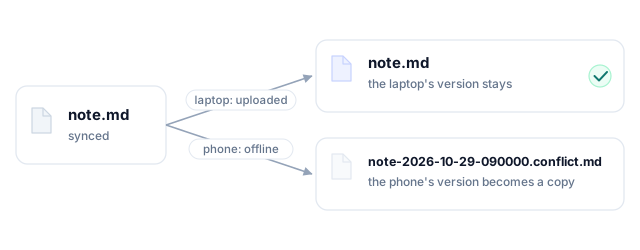
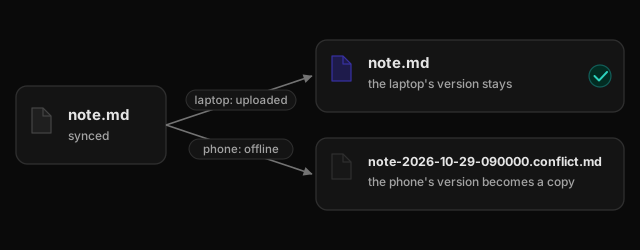
Figure — one note, two lines: one was uploaded, the other was edited offline; when they meet, the server’s version stays and the other becomes a copy
Different notes never conflict, and neither does the same change made on both devices: identical content is not a conflict.
What you see
Section titled “What you see”A new file appears beside the note — for example meeting-2026-10-29-143012.conflict.md. The note
itself now shows the version that reached the server first; the version from this device was saved as
that copy. Both are exactly as you left them — neither one was rewritten to fit the other.
The copy is an ordinary note you can open, read and search. It keeps the original extension — images and PDFs get copies too — and the date and time in its name are when it was saved.
A conflict copy never syncs. It stays on the device that found the conflict.
What to do about it
Section titled “What to do about it”- Open the copy and take what you need from it.
- Then choose one:
- Keep your version: right-click the copy (long-press it on a phone) and choose Replace current file with conflict copy. The note becomes your version, and that change syncs.
- Keep both: copy the parts you want into the note, or rename the copy and keep it as its own note.
- Keep the note: delete the copy.
- On desktop, hovering the copy in the file list shows two small buttons:
diffcompares it with the note side by side,replaceperforms the replace above.
The copy is the only place the losing edits exist, so take what you need from it before deleting it.
Why it works this way
Section titled “Why it works this way”- Nothing is lost. Only one text can be the note, but deciding that does not have to destroy the other one.
- Sync never waits for an answer. A conflict that paused syncing until you chose would hold up every other note too, and you might not look at it for hours.
- We do not merge for you. A note is free-form text with no fixed structure, so a merge can easily produce a sentence that no longer reads, or quietly drop half of it — and it would be an edit you never saw. Both versions stay exactly as they were, and how to combine them is your call.
Settings sync (the .obsidian folder — see Settings sync) is the exception: those
files have no row in Obsidian’s file list, so a copy parked there could not be seen or opened. The newer
modification wins, silently — a setting or two may be behind, and sync does not stop.
If it keeps happening
Section titled “If it keeps happening”A conflict now and then is normal. If notes conflict every day, one device is probably not connected while you edit: check the Courier icon in Obsidian’s status bar on both devices before a long editing session.